

Now available in the New Outlook for Windows is the hybrid work setting. You’ll notice a plus in a location pin icon on the date header to set your location with.

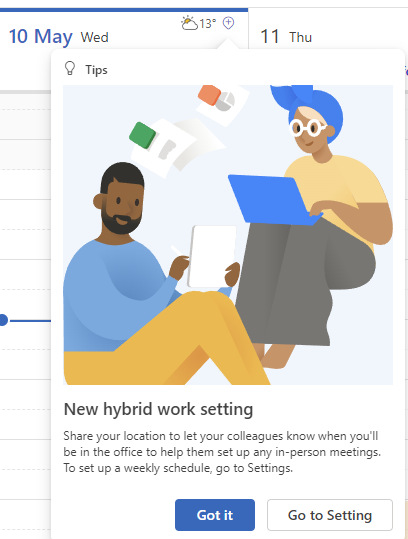
If it’s newly arrived for you, you may also see an informational message as shown below which says
New hybrid work setting
Share your location to let your colleagues know when you’ll
be in the office to help them set up any in-person meetings.
To set up a weekly schedule, go to Settings.
With the option to click Got it and Go to Setting button.
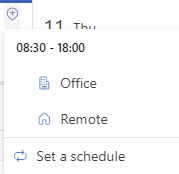
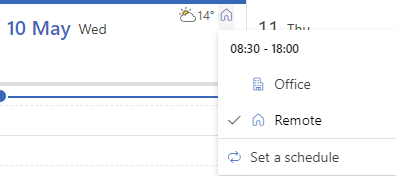
When you click the location pin icon you can pick from Office or Remote or choose to set a schedule, as shown below.
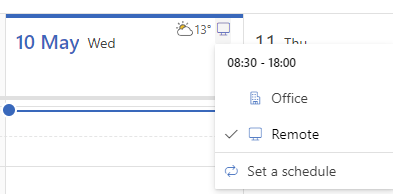
The icons for Office & Remote are different in Outlook for Web. In New Outlook for Windows the icon for remote is a house and in Outlook for Web it’s a monitor.
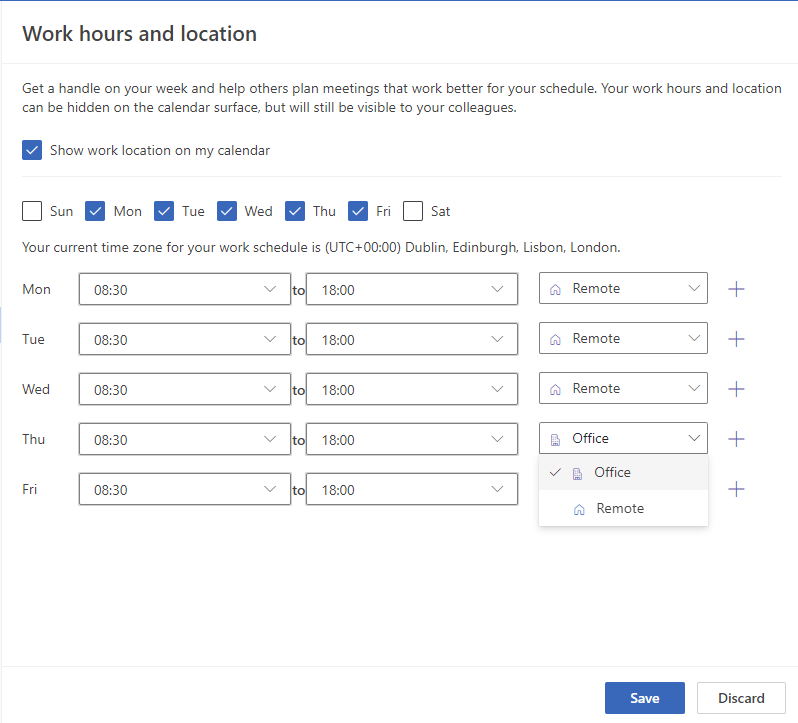
When choosing Set a schedule the Settings dialog box opens to the updated Work hours screen which now includes location and you can pick from Office or Remote for each day which has scheduled working hours.
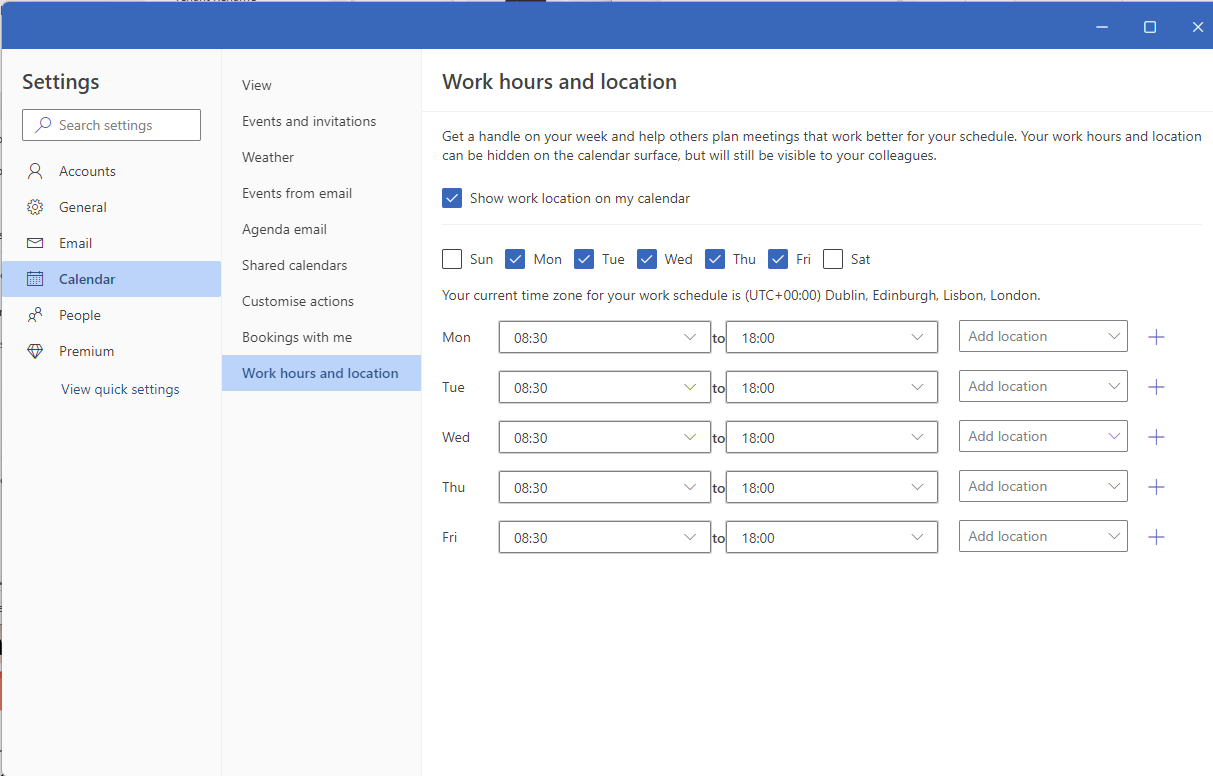
Once you’ve chosen the required locations, click Save
Each day going forward in time will now show your location.

It is possible to change each day individually away from the schedule. To do so, click the icon for working location and change the location.
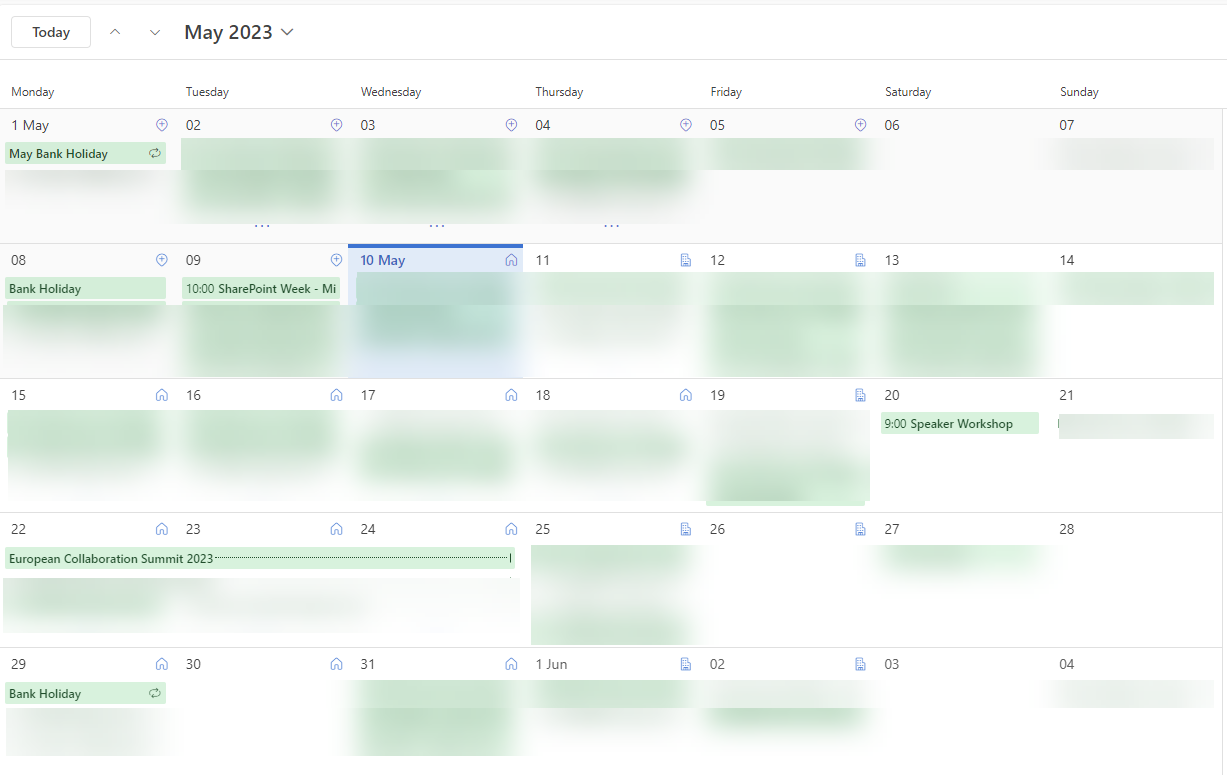
Below you can see the view when someone else reviews your calendar. This is my calendar for May as seen by another user in the tenant with read access. You can see the locations are set from 10th May, which is when the location schedule was configured and that Thursday 18th May has a different location to the other Thursdays, as it was set independently.
 Sara Fennah's Blog