

The Unread Mail folder is back! Search folders are supported in the latest builds of New Outlook.
You can find them at the bottom of your list of folders in each mailbox. Expand to see existing search folders.

To add a new Search folder right click on the Search Folders heading and choose Create new search folder
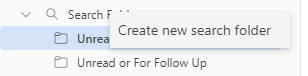
Whilst there are fewer options (at the time of writing) than in classic Outlook, you can create new search folders, by choosing from the available options shown in the image. These search folders work within the context of a single mailbox.

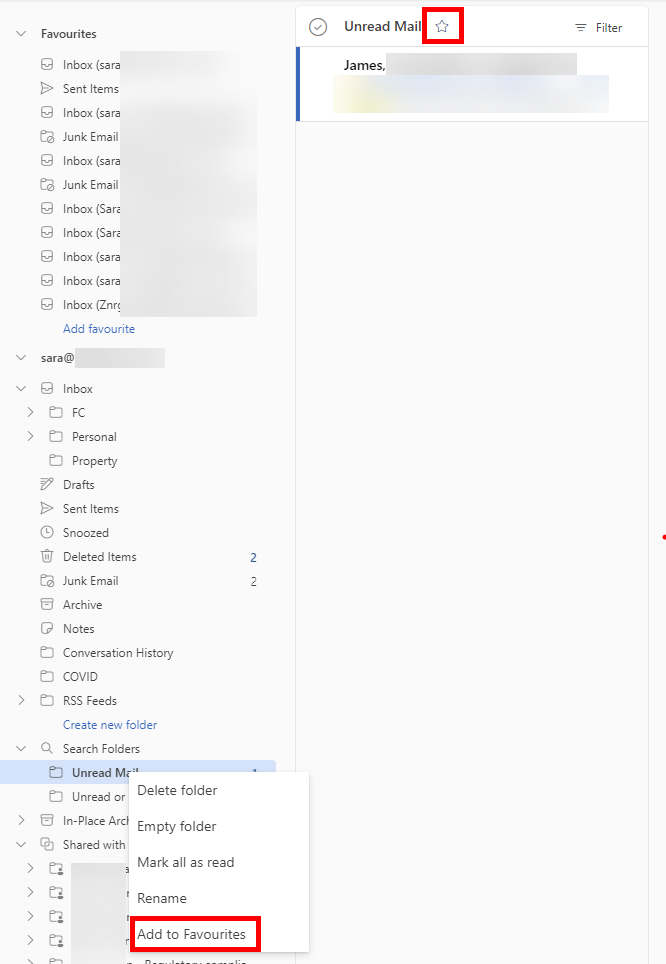
Once created you can add the search folders to you favourite folders using one of two methods highlighted in the screenshot below, which are:
- Right click on the search folder and choose Add to Favourite’s
- Select & display the search folder and click the star icon next to the folder name at the top of the view.
 Sara Fennah's Blog
there have no options to exclude some sub folder as it available in classic version… i have to manual “mark all as read” fot the notification folder…
There are lots of Open items refering to search folder on the feedback portal, so hopefully this will be one of the items, Microsoft are working on. I would recommend that you add your idea/request to help ensure they dont miss it. unread mail search folder options · Community (microsoft.com)
Where are the Custom Search folders stored ? In the users exchange profile ? its not locally on the users machine/ost file.
I understand these are stored as part of the local mail profile, which is why they do not exist in New Outlook as it does not use mail profiles.
is there a way to create custom search folders like it used to be?
Unfortunately not